3 Essential 3D Modeling Tips for 3ds Max (Part1)
Welcome to our new series on 3ds Max modeling tips and tricks! Whether you are a beginner looking to speed up your workflow or a seasoned pro wanting to refine your topology, these quick tutorials will help you get the most out of your software.
Tip #1: Create a Perfect Quad Sphere in Seconds
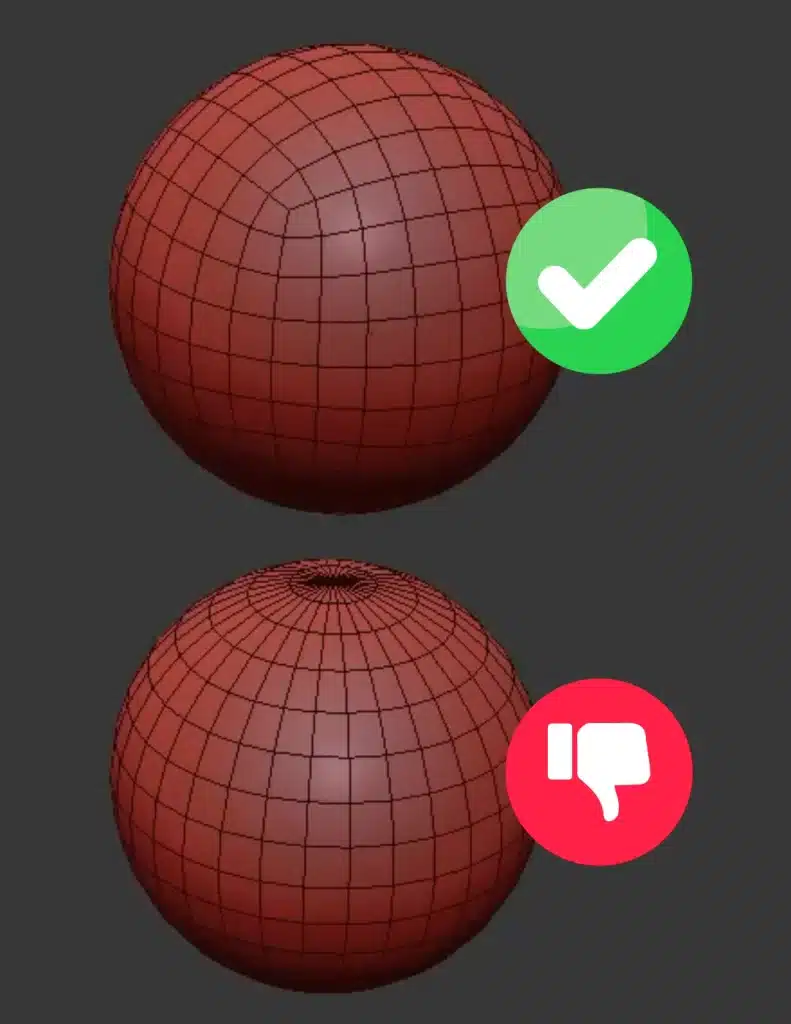
If you’ve been using the standard “Sphere” primitive in 3ds Max, you’ve probably noticed the pinched, messy topology at the poles. For clean subdivision, sculpting, or even just better UV mapping, a Quad Sphere is the way to go. It gives you perfectly uniform, square-based topology all the way around.
Here is the fastest way to create one:
Step 1: Start by creating a standard Box in your viewport. Make sure the length, width, and height dimensions are exactly equal (creating a perfect cube). Step 2: Go to your Modify panel and add a TurboSmooth modifier. Step 3: Next, add a Spherify modifier. Watch as your smoothed cube instantly rounds out into a perfect sphere! Step 4: Crucial Step! Before you move on, make sure to check the “Generate Mapping Coordinates” box in the Spherify modifier settings. This ensures your new sphere has proper, unwrapped UVs right out of the gate.
# 3D Modeling Tips for 3ds Max
💡 Pro Tip: Why do it this way? Because the underlying geometry remains a cube, you get completely even edge flow without the messy pole pinching of a standard sphere. This makes it incredibly easy to add edge loops later if you need to adjust the shape!
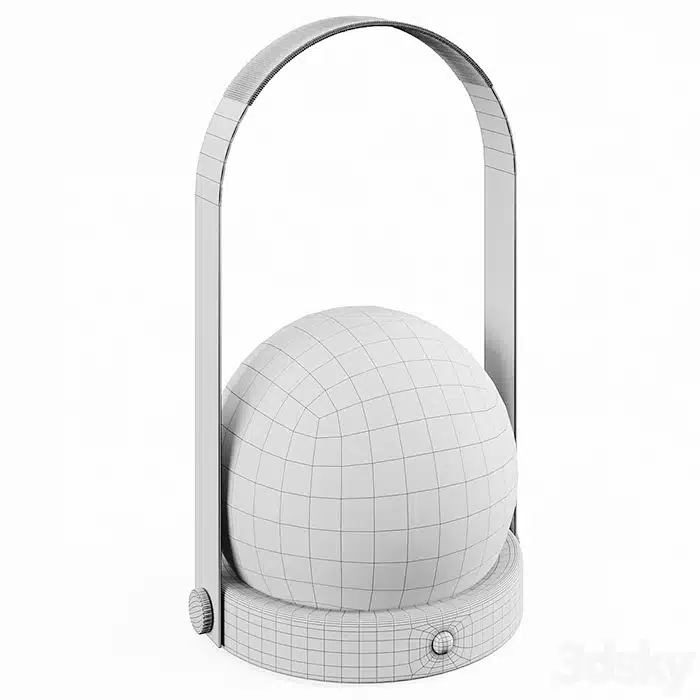
This technique was used in creating the
spherical elements of the “Carrie Table Lamp”
by Audo Copenhagen.
Clean topology = Perfect renders ✨
Tip #2: 3ds Max Corner Chamfer: The Trick You Need to Know
When you chamfer the corner of a box or a hard-surface model in 3ds Max, the default result often leaves you with messy topology, pinching, or unwanted triangles. If you want your model to subdivide smoothly and look professional, you need to control the edge flow manually.

Here is the best technique to get a perfectly clean, quad-based corner chamfer:
# 3D Modeling Tips for 3ds Max
How to do it:
- Step 1: Add an Edit Poly modifier and select the specific corner edge you want to chamfer.
- Step 2: Apply a Chamfer using 2 segments, then delete/remove the inner side edges to open up the geometry and prepare it for rerouting.
- Step 3: Turn on Vertex Snaps and use the Cut tool to manually reconnect the vertices, fixing the topology flow.
- Step 4: Use the Swift Loop tool to add 2 new supporting edges, and finish your cuts to close up the geometry cleanly.
- Step 5: If you are modeling half of an object, add a Symmetry modifier to mirror this clean topology to the other side. Finally, cap off your model with a global Chamfer modifier to soften the hard edges.
💡 Pro Tip: When manually routing edges around a chamfered corner, always strive to keep your polygons as perfect quads (4-sided). Avoid creating triangles right next to the chamfered corner, as they can cause ugly pinching artifacts when you apply a TurboSmooth or MeshSmooth modifier later!
Tip #3: Fix Chamfer Pinching and Bad Shading Instantly
One of the most frustrating issues in hard-surface modeling is the dreaded “pinching” or weird shading artifacts that appear after applying a chamfer, especially when you add a TurboSmooth or MeshSmooth modifier. This usually happens because the default chamfer settings create messy, overlapping geometry at the corners.

Fortunately, there is a lightning-fast trick to guarantee clean edge flow and perfect shading every time.
How to do it:

Step 1: Select the edge you want to chamfer. In the Chamfer settings, change the Mitering type to “Radial” and set the segments to 1. (This creates a smooth, rounded corner base instead of a flat, pinched one).
Step 2: Add an Edit Poly modifier on top of the stack to gain direct access to the newly created geometry.
Step 3: Turn on Vertex Snaps and use the Cut tool to manually connect the new corner vertices. This simple action reroutes the topology and completely eliminates the pinching.
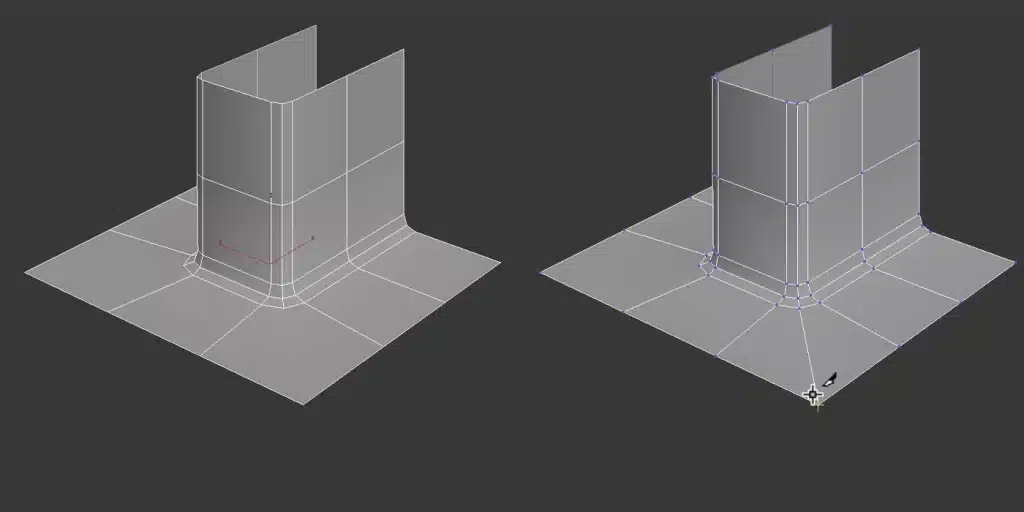
💡 Pro Tip: The “Radial” mitering option is an absolute game-changer for rounded hard-surface models. However, always remember to keep your segment count low (like 1 or 2) before you start manually cutting. Using too many segments will create unnecessary geometry and make the manual “Cut” step much more difficult and messy!
# 3D Modeling Tips for 3ds Max
💡 STRUGGLING WITH SCALE?
Our latest blog post reveals the secret to getting
EXACT dimensions in 3ds Max (every single time!)
2 methods that actually work
👉 Read now