
Pro Tips-Get the EXACT Size Model in 3ds Max
Have you ever scaled an object in 3ds Max, only to find that the dimensions in the status bar are slightly off or messy? Getting the EXACT size of a model in 3ds Max is a fundamental skill that can save you hours of troubleshooting and make your workflow significantly smoother.
Whether you are working on a precise architectural visualization project or preparing assets for 3D marketplaces, this guide will show you two highly effective methods to achieve perfect dimensions every time.
Why Getting the EXACT Size of a Model in 3ds Max Matters
You might wonder, “Does a few millimeters really matter?” In professional 3D workflows, the answer is a resounding yes. Here is why precise scaling is non-negotiable:
- Matching Real-World References: In ArchViz, product design, and VFX, your models must perfectly match real-world blueprints and reference dimensions. A slightly off-scale chair can ruin the entire perspective of a rendered room.
- Higher Marketplace Sales: Platforms like TurboSquid, CGTrader, and Unreal Engine Marketplace strictly favor models with accurate, real-world scales. Buyers are more likely to accept and purchase models that drop into their scenes at the correct size without needing manual adjustments.
Method 1: The Quick Way (Transform Toolbox)
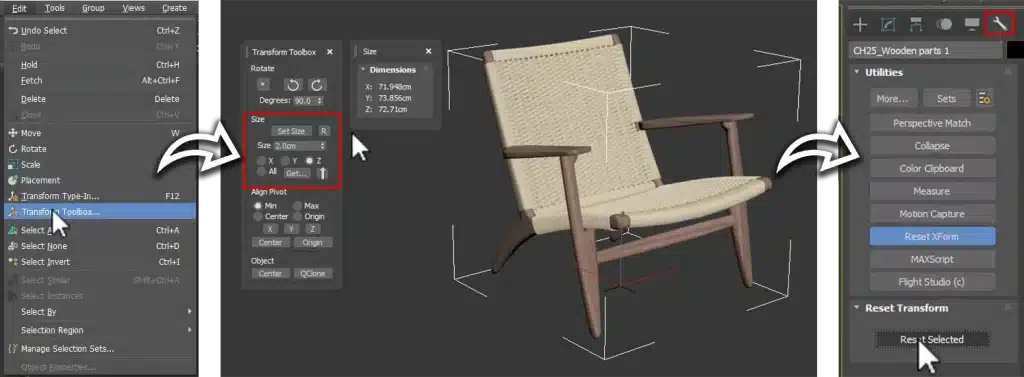
- Go to the main menu and select Edit > Transform Toolbox.
- Select your object in the viewport and click the Get button. (You might notice the current dimensions aren’t exact or show messy decimal numbers).
- Now, type your desired exact value into each axis (X, Y, Z) and click Set Size.
- Crucial Step: Don’t forget to apply a Reset XForm utility afterward. This collapses the transform matrix and fixes any hidden scaling issues, ensuring your modifiers (like Turbosmooth) work correctly.
✅ Done!
🎬 Watch the Quick Video Tutorial
Reading is great, but seeing it in action is better! Watch this short, step-by-step video to see both methods in real-time.
Method 2: The Precision Way (Guide Box + FFD Modifier)
What if your object has an irregular shape, and the Transform Toolbox messes up its proportions? This clever technique uses a guide box and an FFD modifier to perfectly wrap your model to exact dimensions without distorting its organic shape.
Step-by-Step Guide:
- Create a Guide: Create a standard Box primitive and type in your exact desired dimensions (e.g., 100cm x 50cm x 50cm).
- Align: Use the Align tool to perfectly center this box with your main object.
- Make it a Wireframe Guide: Select the guide box, right-click, and go to Object Properties. Check the box for Display as Box. This turns it into a lightweight wireframe bounding box that won’t clutter your viewport.
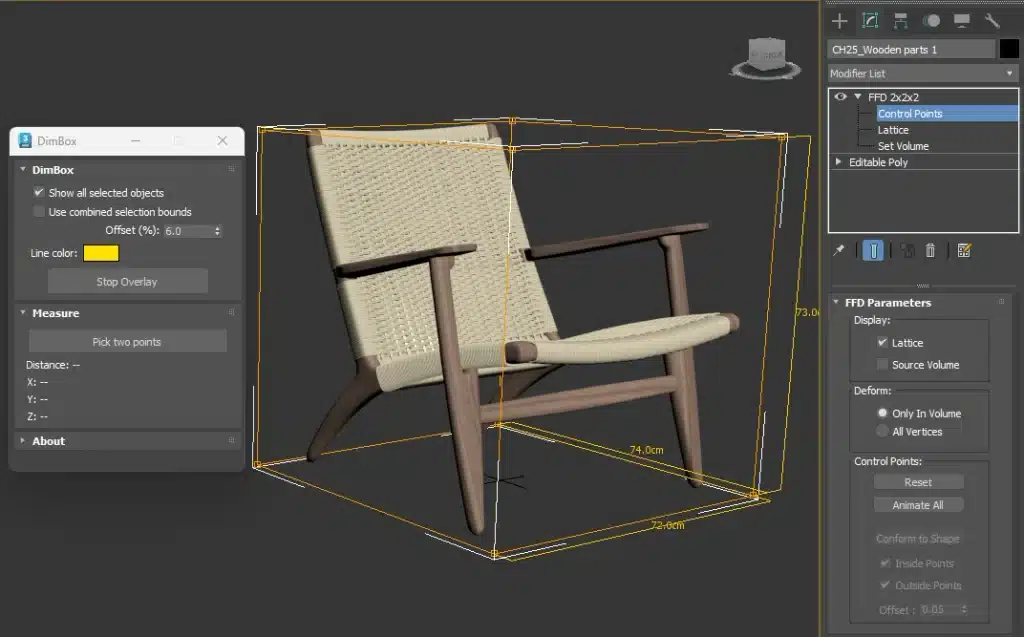
- Add FFD: Select your main object and add an FFD 2x2x2 modifier from the modifier list.
- Enable Snapping: Turn on 3D Snap (press
S) and set it to snap to “Vertices” or “Grid Points”. - Enable Axis Constraints: In the Snap settings, make sure ‘Enable Axis Constraints’ is turned on. This prevents the points from moving in unwanted directions.
- Adjust the Mesh: Go into the FFD sub-object level and select Control Points. Select the corner points of the FFD lattice and drag them. Because of the constraints and snapping, they will perfectly lock onto the corners of your guide box.
- Finalize: Repeat this for all corners until your model perfectly fills the dimensions.
✅ Done! Simply delete the guide box, and your model is now at the exact size, with its proportions beautifully preserved.
Download the 3D Model Used in This Tutorial
- Model Name: CH25 Lounge Chair by Carl Hansen & Søn
- Format: 3ds Max / OBJ / FBX
- 👉 [Download the CH25 Lounge Chair 3D Model Here]
🚀 Pro Tip: Measure and Scale Faster with DimBox (Free Tool)
Tired of manually checking dimensions or guessing distances in the viewport? We built a solution specifically for 3D artists like you.
Meet DimBox, a free, lightweight tool available exclusively at FastCGTools.com.
With DimBox, you can:
- Instantly view the exact dimensions of any selected model directly in the viewport.
- Use the built-in Distance Tool to quickly measure dimensions, gaps, and distances between objects without leaving your workflow.
Stop wasting time on manual measurements.
Final Thoughts
Mastering how to get the EXACT size of a model in 3ds Max is a small step that yields massive improvements in your professional output. Whether you use the Transform Toolbox for speed or the FFD method for organic precision, your models will always be marketplace-ready.
Have questions about these methods? Let us know in the comments, and don’t forget to explore more free tools at FastCGTools.com!
