
3ds Max workflow • Archviz • MaxScript
The Small Placement Tasks That Quietly Steal Hours From Every 3ds Max Scene
A story about furniture that would not line up, rocks that would not sit on terrain, and why Object Placement Manager was built for artists who would rather create scenes than nudge objects all day.
It usually starts with a task that looks too small to deserve attention. A row of chairs needs equal gaps. A set of props needs to sit flush against a wall. A handful of rocks needs to follow an uneven landscape instead of floating above it. None of these jobs is difficult—but in a busy Archviz scene, each one asks for the same small sequence of clicks, transforms, checks, and corrections.
At first, it is easy to call that normal 3ds Max work. Select an object. Move it. Open the Align tool. Adjust a pivot. Copy an object. Change its rotation by a few degrees. Repeat. The scene gets better, but the time disappears in tiny pieces.
That pattern became impossible to ignore during real scene-building work. The creative decisions were enjoyable: choosing the right assets, shaping an interior, balancing a composition. The repetitive placement work was different. It asked for attention without adding much creative value.
“The scene did not need more manual transforms. It needed a faster way to make placement decisions repeatable.”
Why manual object distribute slows down Archviz work
3ds Max gives artists powerful tools, but object placement often happens across several commands and several passes. That becomes especially noticeable when the scene contains objects of different sizes, off-center pivots, groups, or terrain with modifiers such as Wave and Noise.
Spacing by eye can make an otherwise clean layout feel uneven. Aligning by pivot can give a wrong result when the objects are different sizes. Randomizing a scatter can look mechanical if every item keeps the same rotation and scale. And placing objects on a curved surface can turn into a repetitive adjustment exercise.
There are existing scripts and workflows for parts of this problem. But switching between tools, setting up helpers, or working around a single missing behavior breaks momentum. The goal was not another oversized toolbox. The goal was one compact 3ds Max object placement script that keeps the most common operations close together.
Building one panel for the placement jobs that repeat every week
Object Placement Manager was built as a tab-based MaxScript toolkit for the parts of scene layout that artists do repeatedly: distribute, align, reposition pivots, add variation, and settle objects on a surface. It works directly on the current selection, with no helper objects and no scene clutter.
The principle is simple: select the objects, choose the action, make the adjustment, and continue working. Every transform-changing action is placed inside a named undo step, so testing an arrangement never feels permanent.


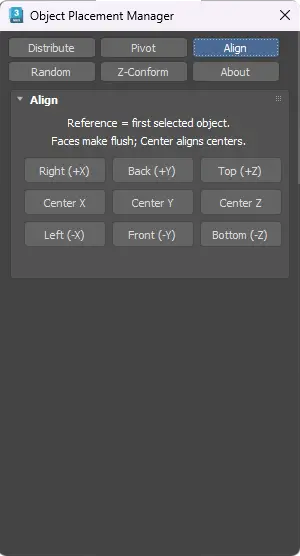
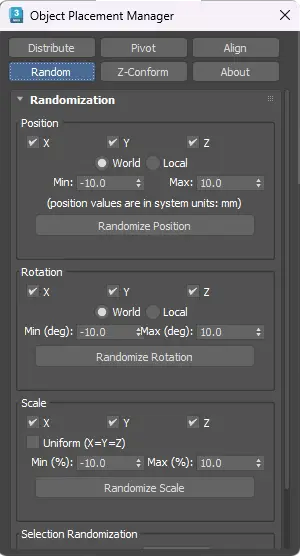
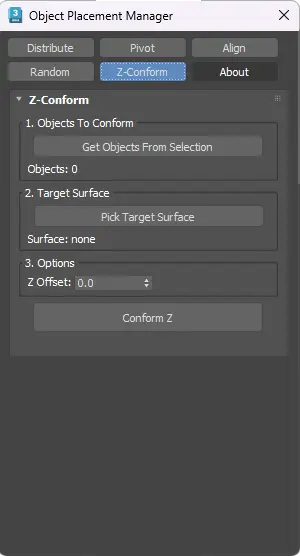
Distribute with real spacing
Place selected objects along X, Y, or Z using pivot distance or actual bounding-box gaps. Use fixed spacing, or fit intermediate objects between fixed endpoints.
Set pivots without disrupting geometry
Choose from 27 bounding-box pivot positions. The pivot moves where it should; the visible object stays where it is.
Align by edge or center
Use a direct 3×3 grid to align the selection to a reference object by bounding-box edge or center on any axis.
Break up repetition fast
Use a direct 3×3 grid to align the selection to a reference object by bounding-box edge or center on any axis.
The difference between “close enough” and repeatable placement
The important detail is not simply moving many objects at once. It is making the result predictable. When objects of different sizes are distributed using bounding-box gaps, the empty space between them remains intentional. When items are aligned by bounding-box center or edge, their pivot locations no longer distort the visual result. When endpoints need to stay in place, the objects in between can be fitted cleanly between them.
Those are small distinctions, but they matter in interior scenes, environment layouts, product visualizations, and any setup that will be revisited later. A repeatable workflow is easier to refine, easier to undo, and easier to trust.
Made for the artist in the middle of a scene
Object Placement Manager is not meant to replace artistic judgment. It removes the mechanical part that comes after the decision. You still decide how a space should feel, which assets belong in it, and where variation should happen. The script makes the execution of those decisions faster.
Whether you are lining up cabinets, setting pivots for a library of assets, scattering props, or dropping rocks onto a terrain surface, the aim is the same: spend less time correcting transforms and more time improving the image.
