I was modeling a bath mixer recently when I noticed a mistake in the nozzles. There were 46 of them, all attached into one object, and all of them had the same problem. My first thought was the usual one: I’ll have to remodel this whole section.
It turns out there’s a much faster way. I fix one nozzle, and every other nozzle updates with it. Here’s the workflow I used, step by step.
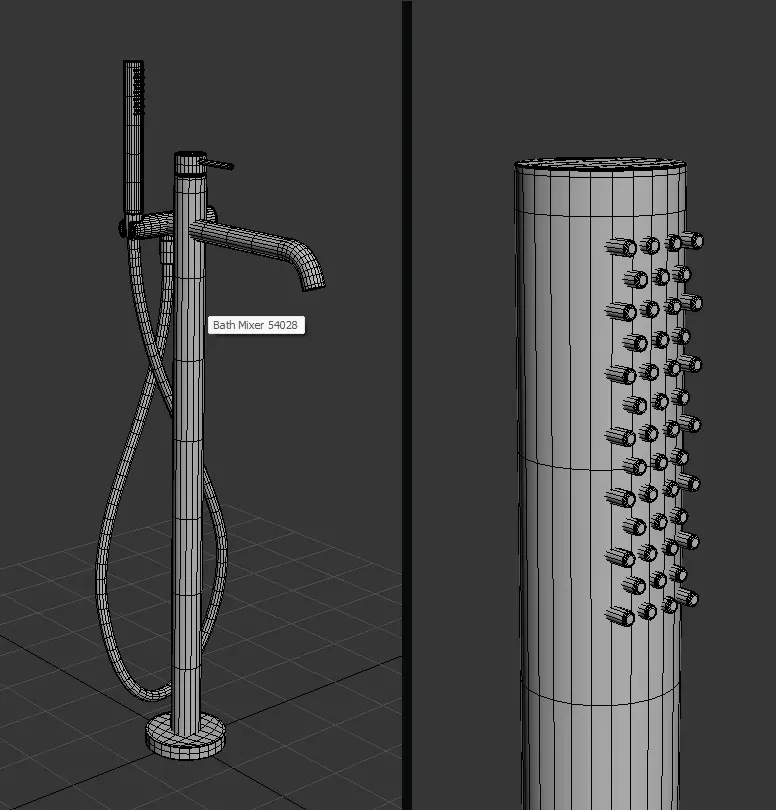
The problem
When many similar parts are attached into a single mesh, fixing a shared mistake normally means editing each one by hand, or remodeling one and rebuilding the section around it. With 46 pieces, that is a lot of repeated work, and it is easy to introduce small differences between them.
The idea is to turn the attached mesh back into separate objects, then let one corrected object replace all the others.
What you need
- AttachDetach (free script) to split the attached mesh into separate objects: [LINK]
- Object Placement Manager (paid script) to set the same pivot on all objects: [LINK]
You don’t have to use my pivot tool. Any method that gives every object a consistent pivot will work. I use Object Placement Manager because it’s already part of my daily workflow.
Step 1: Detach all elements
Select the attached object and open AttachDetach. Turn on the Element option. Every element of the mesh becomes its own separate object, so you now have 46 individual nozzles instead of one big mesh.
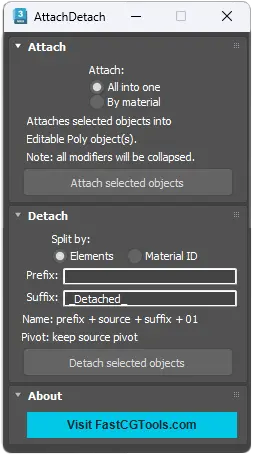
Step 2: Give all objects the same pivot
Substitute swaps objects based on each object’s transform, so the pivots need to be consistent. Set the same pivot position on every nozzle. I use Object Placement Manager for this, but plenty of other tools can do it.
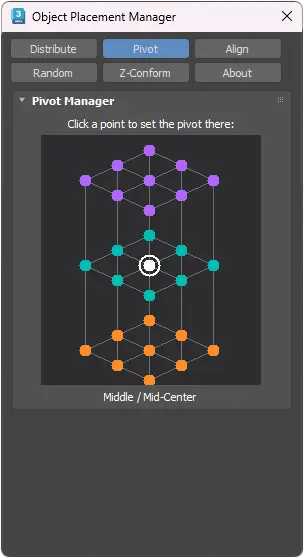
Step 3: Reset XForm
Select all the nozzles and run Reset XForm. This clears leftover rotation and scale so every object starts from a clean state. Collapse the stack afterward if you want it tidy.
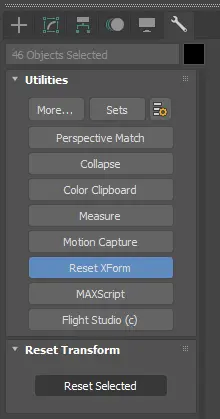
Step 4: Fix one nozzle
Make a copy of one of the nozzles and correct the mistake on that copy. Keeping the original untouched means you can always go back if something goes wrong.
Step 5: Apply the Substitute modifier
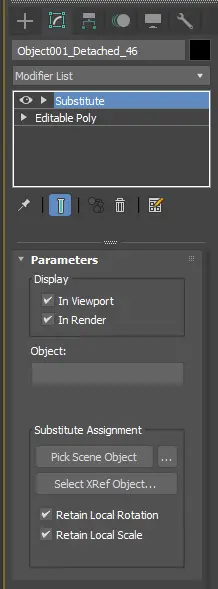
Select all the original nozzles and add the Substitute modifier. Click Pick Scene Object and select the corrected copy. All 46 nozzles update at once.
That is the whole fix: one correction, many objects updated.
Why this works
Substitute lets many objects share one source. Because the pivots are consistent and the transforms are reset, the replacement lines up on each object. If you later notice another issue, you edit the source once and everything follows.
Where this is useful
Any time you have repeated parts that were attached together: nozzles, screws, perforations, vents, grille bars, handles. It also helps with downloaded models that arrive as one merged mesh and need a small shared change.
Get the scripts
I build these tools to solve problems I hit during real modeling work, and I’m still refining them as I go. If you have a workflow that handles this differently, I’d like to hear it in the comments.
More 3ds Max modeling tips on YouTube and Instagram
Section: The tool behind step 2

Object Placement Manager started as a small tool I built for myself. I kept needing quick control over pivots and object placement while modeling, and nothing I tried fit my workflow. So I made my own, and I’ve kept improving it as I use it.
In a separate post, I told the full story of how it came about: the problem I kept hitting, what I tried first, and why I ended up building it.
Read the story behind Object Placement Manager
If you want to try it, you can find it here: Object Placement Manager
Did you see my latest 3d models?