
Best 3ds Max Quad Cap: Cap a Cylinder With All Quads
If you have ever finished a cylinder in 3ds Max, you know the default cap is a triangle fan. It works, it renders, and then the moment you add subdivision to the model, the shading breaks apart around that cap.
There is a better way. In this guide I will show you how to cap a cylinder with all quads in 3ds Max using the Rapid Quad Cap tool from the free RapidTools plugin.
Why the Default Cylinder Cap Causes Problems
The default cap on a cylinder in 3ds Max is built from triangles fanning out from a center point. Triangles are not the problem in themselves, but a triangle fan concentrates all the geometry at a single vertex. Under a TurboSmooth or OpenSubdiv modifier, that single pole becomes the exact spot where the surface pinches, dents, or shades unevenly.
If the cylinder is a product model for a marketplace, or an asset for a scene, that cap will cost you rework.

How to Cap a Hole With Quads in 3ds Max
RapidTools has a command called Rapid Quad Cap. It takes an open border and fills it with a clean grid of quads.
Step 1 — Install the plugin. RapidTools is a free plugin. Download it from rapidmxs.com and install it like any other 3ds Max plugin.
Step 2 — Find the command. Activate it from menu > RapidTools > Topology > RapidQCap. I would recommend assigning a keyboard shortcut to it. You will use this command every time you cap something, and going through the menu each time will get old fast.
Step 3 — Select the polygon. Select the polygon on your Edit Poly object that you want to cap.
Step 4 — Press the shortcut. That is it. The cap is generated as quads, ready for subdivision.
Real Examples
I have used Rapid Quad Cap on my own models published on 3dsky. Here are three examples:
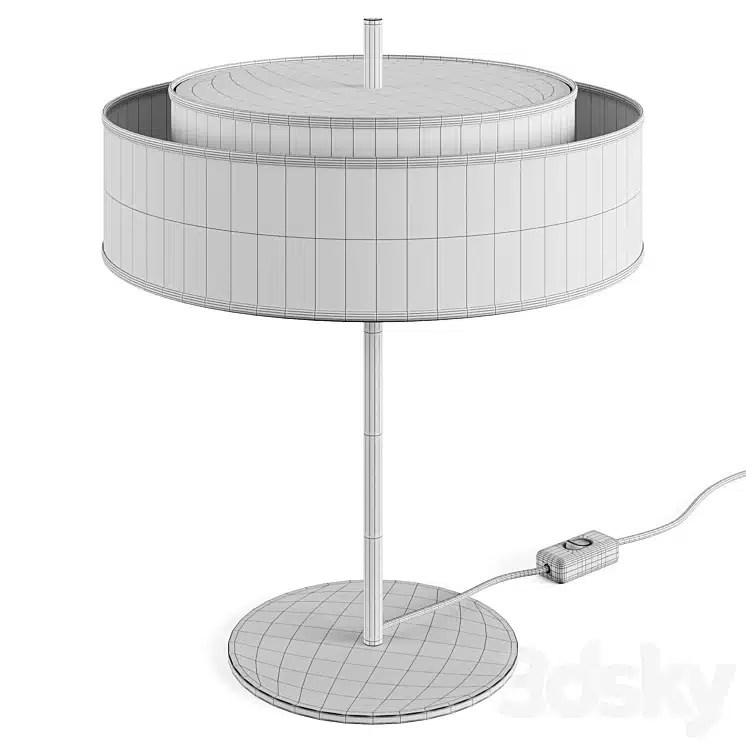


All three are market-ready, and you can see the quad cap result in the topology shots on each page.
Requirements: When Rapid Quad Cap Will Not Work
Rapid Quad Cap is fast, but it is not magic. If the command does nothing, or returns a bad result, it is almost always one of these two things.
1. The border must have an even number of edges
This is the hard requirement. Count the edges around the border you want to cap. If that number is odd, the tool cannot build a quad grid across it and will fail. If it is even, it will work.
A standard cylinder cap gives you a circular border made of an even number of segments, so this usually passes without any fuss. Custom cutouts are where odd edge counts tend to sneak in.
2. The object must be Editable Poly
The object must be Editable Poly. Rapid Quad Cap does not work on an object that still has a live Edit Poly modifier in its modifier stack.
If you have been using Edit Poly as a modifier on everything — which is a very reasonable habit — you will need to collapse that modifier down to Editable Poly before running the command. Apply the modifier, or convert the object, and then cap.
That is the whole checklist. If both of those are satisfied, the cap will come out clean.
Watch the whole thing in under a minute:
Wrapping Up
Capping a cylinder with all quads takes one command once you know where it lives. Install RapidTools, assign Rapid Quad Cap to a shortcut, and make sure your mesh is Editable Poly with an even number of border edges.
RapidTools is free, and there is a much broader look at it in the blog section here on fastcgtools.com, including tutorials for the other topology tools inside it.
For more modeling shortcuts like this one — perfect quad spheres, corner chamfer tricks, and fixing chamfer pinching — read 3 Essential 3D Modeling Tips for 3ds Max (Part 1).
